
An osu! ruleset made for controller played by flicking the sticks to hit incoming notes
Last edited by  Zanthous at October 22, 2026 10:43 AM UTC
osu!sticks is a custom ruleset for osu!lazer played with two analogue sticks. Flick, hold and follow notes around a circular playfield, with each hand playing its own part of the music
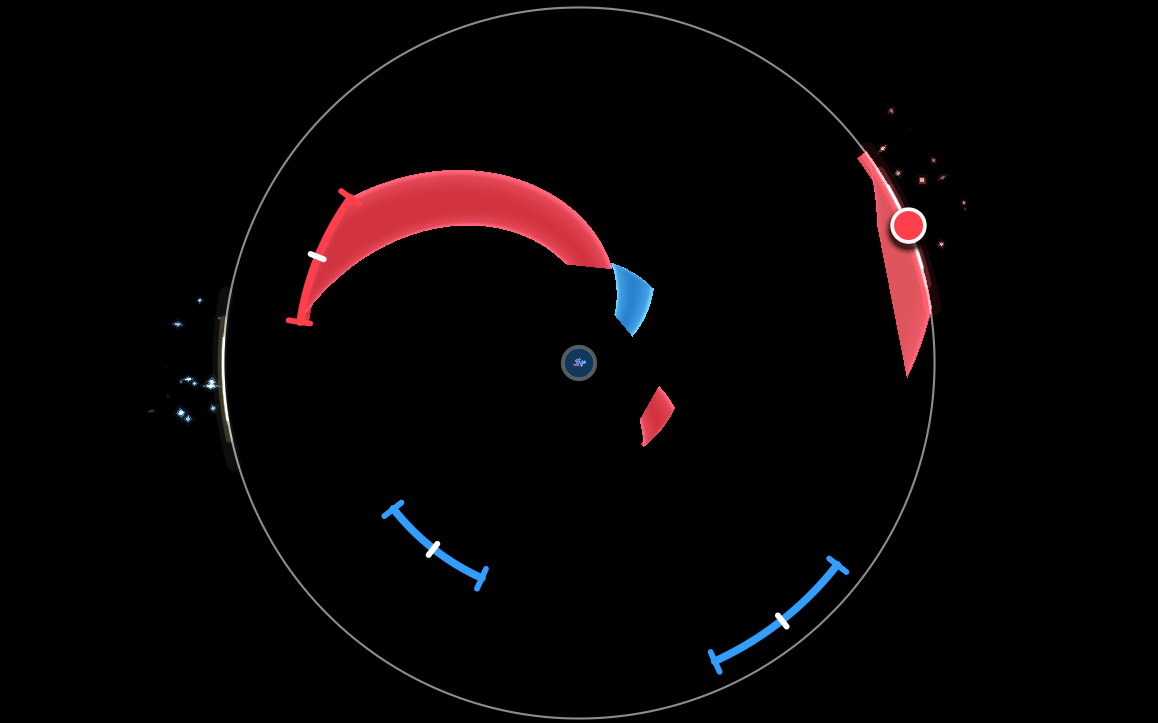
Notes approach the outer ring from the center. Aim the matching stick towards each note and hit it as it reaches the ring. By default, blue is the left stick and red is the right stick.
Both sticks can play together, or one can follow a slider while the other plays separate notes. Your accuracy depends on both your timing and how accurate your aim is.
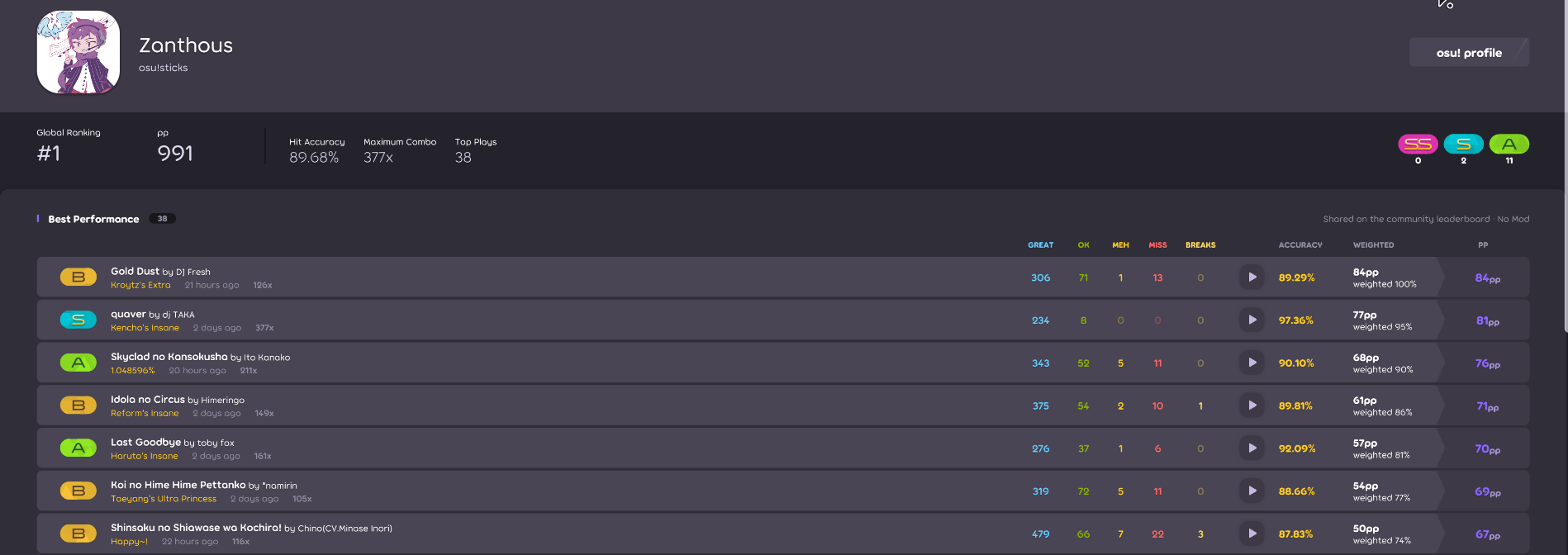
See your top plays - or the top plays from the community by signing in under the sticks gamemode settings!
In the ruleset settings there are additional buttons to create osu!sticks difficulties. Please use these instead of the osu! lazer ui where possible to avoid data loss, including during importing after a difficulty editing externally
 Easy — Wider aim tolerance, easier timing and more forgiving health drain
 No Fail — Keep playing even when you miss
 Half Time — Slow the song down
 Hard Rock — Tighter aim and timing requirements, with harsher health drain
 Sudden Death / Perfect — Fail on a miss, or require perfect accuracy with Perfect
 Double Time — Speed the song up
 Autoplay — Watch an automatic playthrough
 Relax — Aim sticks in the correct directions and notes will be played automatically
Parity — Encourage broader, alternating stick movements, with variation shaped by the music's rhythm and patterns
 Difficulty Adjust — Customise difficulty settings, aim tolerance and playback speed, or disable slider reversals
Strum — Aim with each stick, then use its trigger or shoulder button to hit notes instead of flicking
Under Settings → Rulesets → Sticks, you can adjust approach rate, stick colours, note appearance and how far you need to move a stick to trigger a flick